



By Cisco Rodriguez, Founder of Rocket Web Designer
Why this is the one thing I tell every single client to fix first
Almost thirty years doing this, and if you asked me what the single highest-return, zero-cost thing a business owner can do, it’s not the website. It’s not the ad campaign. It’s their Google Business Profile.
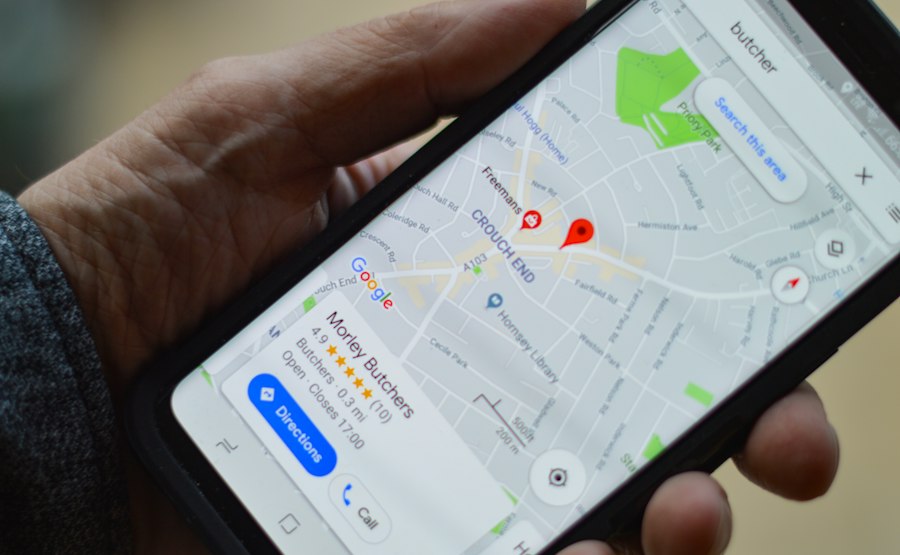
Here’s why. When someone searches for a business like yours, or types your name into Google to check you out before calling, your Business Profile is usually the first thing they see. Not your website. Not your social media. That little box with your rating, your photos, your hours, and your reviews. Customers decide whether to trust you in about three seconds looking at that box. So do I, honestly, when I’m checking out a business myself.
And it’s free. Google doesn’t charge you a dollar to have one, to optimize it, or to show up in the map results. Which means the businesses that lose out here aren’t losing because they didn’t have the budget. They’re losing because nobody ever sat down and did it right.
This guide is me doing that with you, step by step, the way I’d walk a client through it in person. It’s long on purpose. Every section matters, and skipping steps is exactly how businesses end up with a profile that just sits there doing nothing.
Step 1: Claim your profile (or find out if you already have one)
Before you touch anything, figure out where you actually stand. A lot of businesses already have a profile they didn’t create, Google sometimes generates one automatically from public data, or a previous employee or agency set one up years ago and nobody has access anymore.
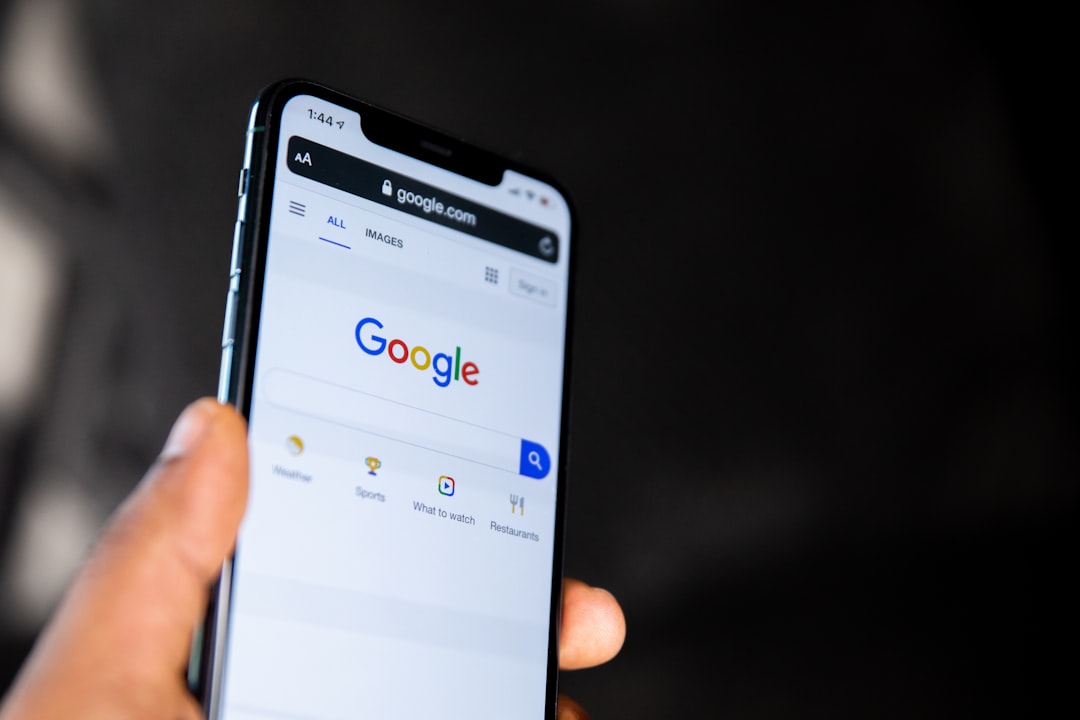
To check, search your business name plus your city on Google. If a box shows up on the right side of results with your info, that profile already exists. Click “Own this business?” to start the claim process.
If nothing shows up at all, go to google.com/business and click “Manage now” to create one from scratch.
[SCREENSHOT: Google search results showing the business profile panel, with the “Own this business?” link circled]
Step 2: Verification, the part everyone dreads

Verification is Google confirming you’re really who you say you are and really located where you say you are. It’s the single most common place I see business owners get stuck, so let me walk you through what actually happens.
Google offers a few verification methods depending on your business type:
Postcard by mail. The classic method. Google mails a physical postcard to your business address with a code on it, usually takes 5 to 14 days. You enter that code into your dashboard and you’re verified.
Phone or email verification. Some businesses qualify for instant verification instead of waiting on the mail, depending on your business category and history with Google.
Video verification. Newer option, mainly for service-area businesses without a public storefront. You record a short video walking through your business showing signage, equipment, or proof you’re operating where you say you are.
Instant verification. If you’ve already verified your business through Google Search Console for your website, sometimes Google will verify your Business Profile automatically using that existing trust.
[SCREENSHOT: The verification method selection screen in the GBP dashboard]
A real thing I see constantly: business owners give up during verification because the postcard didn’t show up, or it went to an old address. If two weeks pass with no postcard, don’t just wait around, go back into your dashboard and request a new one, or check if a faster method opened up.
(Profile got suspended out of nowhere? We can help, this happens more than people think, usually from an edit that tripped a Google flag.)
Step 3: Core profile setup, the fields that actually decide whether you show up

This is where I see the most damage done, not by neglect, but by owners trying to game the system. Let me walk through each field straight.
Business name. Use your actual, real-world business name, exactly as it appears on your signage and paperwork. Do not stuff keywords into this field, “Cisco’s Plumbing Best Plumber Pembroke Pines” is not your business name, and Google will eventually catch it and can suspend your profile over it. I’ve seen this exact mistake cost businesses weeks of visibility while they fight to get reinstated.
Category. Pick the primary category that most precisely matches what you do, not the broadest one. “Plumber” beats “Contractor” if that’s genuinely your main service. You can add secondary categories too, use them for real additional services you offer, not to stuff extra keywords into your listing.
[SCREENSHOT: category selection dropdown in the GBP dashboard]
Address. Has to be your real, physical location. No P.O. boxes, no virtual offices unless that location genuinely has staff and signage during business hours. If you’re a service-area business without a public storefront, you can hide your exact address and just show your service area instead, that’s built for exactly your situation, use it.
Service area. If you travel to customers rather than having them come to you, define your service area precisely, don’t just claim the whole state if you really only work within thirty miles. Overreaching here can hurt you more than it helps.
Hours. Keep these accurate and current. Nothing kills trust faster than a customer showing up to a “closed” sign when Google said you were open. Update holiday hours every single time, Google has a specific field for it.
[SCREENSHOT: hours and special hours editing screen]
Phone number. Use a number that rings directly to your business, one you actually control. Numbers that route through a third-party call center serving multiple unrelated businesses can get flagged as deceptive.
Step 4: Write a description that actually says something
The business description field is one of the most underused parts of the entire profile. Most owners either leave it blank or fill it with vague nothing, “we provide quality service to our customers.” That tells a potential customer nothing.
Write two or three sentences that say what you actually do, who you do it for, and what makes you different. Skip the corporate language. If you’re a family-run HVAC company that’s been in the same neighborhood for fifteen years, say that plainly.
Step 5: Services and products, list everything

Don’t skip this section, it’s one of the easiest places to show up for more searches without doing any extra work. List every real service or product you offer, using the words a customer would actually search, not internal jargon.
If you’re a plumber, don’t just write “plumbing services,” break it out: drain cleaning, water heater repair, leak detection, pipe replacement. Each one is a chance to match a specific search.
[SCREENSHOT: services list editing screen with example entries]
Step 6: Posts, the free ads nobody uses
Google lets you publish short updates directly to your profile, offers, events, news, product highlights. These show up right on your listing and they’re completely free. Most businesses never touch this feature, which means the ones that do stand out.
Post regularly, once a week is a reasonable target, and use real photos, not stock. A quiet, dormant profile signals to Google, and to customers, that the business might not be very active. Fresh posts do the opposite.
[SCREENSHOT: creating a new post in the GBP dashboard]
Step 7: Reviews, and how to actually handle them

Reviews are the single biggest trust signal on your whole profile. A business with sixty recent reviews beats a business with five old ones, every time, regardless of the star average.
Ask every happy customer for a review, systematically, not just occasionally when you remember. Don’t offer money or discounts in exchange for reviews, that’s against Google’s policy and can get your profile penalized.
Respond to every review, good and bad. A thoughtful response to a bad review, calm, specific, showing you actually addressed it, often does more for your credibility than the negative review did damage. Ignoring bad reviews is what actually hurts you.
[SCREENSHOT: the review response interface]
Step 8: Questions and answers
Anyone can post a question on your profile, and anyone can answer it, including strangers who don’t actually know your business. Check this section regularly and answer questions yourself before someone else gives a wrong answer.
A smart move, seed it yourself. Post the questions customers actually ask you all the time, and answer them clearly. This also helps you show up for those exact searches.
Tips and real Google guidelines
Everything above is practical advice from doing this for almost thirty years. This section is different, it’s pulled directly from Google’s own official policies, so you know exactly where the real lines are, not just my opinion.
Your profile has to match reality. Google’s core rule underneath everything else: your name, address, and details need to line up with how your business actually presents itself in the real world, your signage, your stationery, your branding.
There are two levels of enforcement. Recommendations are best practices, skip them and you lose some visibility, but your profile stays up. Rules are mandatory, break one and Google can remove content, suppress your ranking quietly, or suspend the whole profile.
The most common suspension triggers according to Google’s own guidance: an ineligible or inaccurate address, a keyword-stuffed business name, duplicate listings for the same business, or a major sudden edit to your name or location. I’ve watched a real estate agent get suspended for adding “realtor” and “real estate agent” into their business name field, they had to strip it back out before Google would reinstate them.
Google updates these policies whenever it wants, usually without any announcement. What’s true today might shift. It’s genuinely worth re-checking Google’s official Business Profile guidelines every few months, not just setting your profile once and forgetting it.
Complete profiles perform dramatically better. Businesses with fully filled-out profiles get significantly more calls and direction requests than incomplete ones. Every field you leave blank is a small cost.
You can read Google’s full official policy pages directly at their Guidelines for representing your business and their full policy index.
Final thoughts
None of this is complicated, but almost nobody does all of it. Most profiles I audit are missing at least half of what’s covered here, a vague description, no services listed, zero posts, reviews nobody ever responded to. Every gap is a small leak, and they add up to a profile that just sits there instead of actually bringing in customers.
Set aside an hour, go through this guide step by step, and fix what’s missing. It’s free, it’s within your control, and it’s the highest-return hour you’ll spend on your business this month.
Want your Google Business Profile handled for you instead? That’s exactly what our GBP management service does. We don’t grow unless you do.