



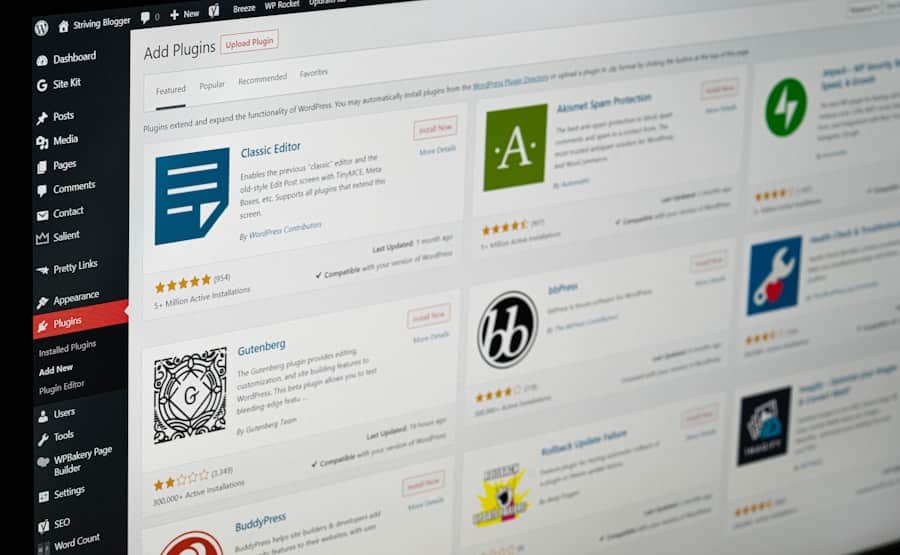
The update you’ve been ignoring
Open your WordPress dashboard right now and look at the update count. If you’re like most small business owners, there’s a number next to the Updates menu – plugins out of date, maybe a theme update, maybe a WordPress core update. And you’ve been clicking past it for weeks, because last time you updated something, the site broke, and now you’re scared to touch it.
That fear is the problem this post solves. This is Part 4 of What Your Website Is Doing While You Sleep. Part 1 covered backups, Part 2 speed, and Part 3 security. This part is the update layer – the WordPress plugin audit, the conflicts that happen when updates collide, and the safe way to keep a site current without breaking it.
Why updates matter more than owners think
Outdated plugins are the single most common way WordPress sites get hacked. Wordfence’s threat intelligence consistently attributes the majority of WordPress compromises to known vulnerabilities in outdated plugins and themes – flaws that were patched, sometimes months ago, in updates the owner never installed.
So the irony is brutal: owners avoid updating because updates sometimes break things, and in avoiding updates they leave the door open to the thing that breaks everything – a hack. The unupdated site isn’t safer. It’s the most vulnerable kind of site there is.
But the fear is rational. Updates do sometimes break sites. The answer isn’t to avoid updating. It’s to update safely, with a process that catches problems before they reach your live site.
Why updates break sites (the conflict problem)
When an update breaks a WordPress site, it’s almost always a conflict. Understanding the types helps you avoid them:
- Plugin-plugin conflicts. Two plugins that worked fine together suddenly clash after one updates. The new version of Plugin A does something Plugin B doesn’t expect.
- Plugin-theme conflicts. A plugin update assumes something about how the theme works, and your specific theme does it differently.
- PHP version conflicts. A plugin update requires a newer PHP version than your hosting runs, or vice versa. One of the WordPress settings owners get wrong is running an outdated PHP version that causes exactly these breaks.
- Core-plugin conflicts. A WordPress core update changes something a plugin relied on, and the plugin hasn’t caught up yet.
The pattern: conflicts happen at the seams between components. The more plugins you run, the more seams exist, the more conflicts are possible. Which leads directly to the most valuable thing in this post.
The plugin audit
Most small business WordPress sites are running far more plugins than they need, and every excess plugin is attack surface, conflict risk, and performance drag. The plugin audit is the periodic cleanup that keeps the site lean. Run it quarterly.
Step 1: List every plugin and what it does
Go to Plugins in your dashboard. For each one, answer honestly: what does this do, and do I still need it? Most owners discover several plugins they forgot they installed, installed to test once, or that a previous developer left behind.
Step 2: Delete what you’re not using
Deactivating isn’t enough – the code is still on the server and can still be exploited. Delete plugins you don’t actively need. Be ruthless. Every plugin removed is one fewer thing to update, conflict, and secure.
Step 3: Flag the abandoned ones
Check each remaining plugin’s last update date (visible in the plugin directory). Anything not updated in over a year is a risk – the developer may have abandoned it, which means no security patches coming. Find an actively-maintained alternative and replace it.
Step 4: Consolidate overlapping plugins
Running three plugins that each do part of what one good plugin does? Consolidate. Fewer, better-maintained plugins beat many single-purpose ones. A common example: separate plugins for SEO, sitemaps, and schema when one SEO plugin handles all three.
Step 5: Question the resource-heavy ones
Some plugins are notorious performance drains – heavy page builders, bloated slider plugins, social-media-feed plugins that load enormous scripts. If a plugin is slowing the site and you can live without it, the speed gain is often worth more than the feature. This ties straight to the speed and caching layer from Part 2.
The safe update process
Here’s how to stay current without the fear. This is the process that prevents the broken-site nightmare:
- Back up first, always. Before any update, confirm you have a current backup. This is your undo button. Part 1 covered backups in depth – a tested backup turns a broken update from a disaster into a five-minute rollback.
- Update on staging if you can. A staging site is a private copy where you test updates before applying them live. Many good hosts offer one-click staging. Test the update there, confirm nothing breaks, then apply to live.
- If no staging, update one at a time. Don’t bulk-update twenty plugins at once – if something breaks, you won’t know which one did it. Update one, check the site, then the next.
- Update at low-traffic times. Early morning, late evening – whenever your site is quietest. If something breaks, fewer customers see it.
- Check the site after updating. Don’t just click update and walk away. Load the homepage, a service page, the contact form. Confirm everything works.
- Keep core, plugins, and theme reasonably current. Don’t update the instant something releases (let others find the bugs first), but don’t fall months behind either. Weekly or biweekly is the sweet spot.
The auto-update question
WordPress can auto-update plugins, themes, and core. Should you turn it on? It depends:
- Auto-update minor core releases: yes. These are security and bug fixes, rarely breaking. WordPress does this by default and you should leave it on.
- Auto-update plugins: cautiously. For simple, reliable plugins, auto-update is fine and keeps you secure. For complex plugins that have broken your site before, or critical ones like your page builder, manual updates with testing are safer.
- Auto-update the theme: usually no, especially if it’s customized. A theme auto-update can wipe customizations if they weren’t done in a child theme.
The balanced setup for most small business sites: auto-update core and the low-risk plugins, manually update the high-risk and critical ones with a backup and a quick test.
The 45-minute audit you can run today
One sitting, dashboard open:
- Confirm you have a recent backup (5 min). If not, make one before doing anything else.
- List and review every plugin (15 min). What does each do? Do you need it?
- Delete the unused ones (10 min). Deactivate, confirm nothing breaks, then delete.
- Check update dates on what remains (10 min). Flag anything not updated in 12+ months for replacement.
- Apply pending updates safely (5 min). One at a time, checking the site after each.
Most owners come out of this with a leaner, faster, more secure site and – more importantly – the confidence to keep it updated instead of clicking past that update count in fear.
What’s coming in Part 5
Part 5 covers monitoring – how you’d know your site went down, got slow, or broke before a customer calls to tell you. The watchful layer that catches problems while you sleep instead of after they’ve cost you business.
Updates and plugin audits handled for you, safely: the full maintenance process – staging tests, safe updates, quarterly plugin audits, backups – runs through our WordPress maintenance service. The hosting foundation that makes safe updates possible lives in our web hosting service.
Final Thoughts
The update count in your dashboard isn’t a nuisance to click past – it’s the security and stability of your site waiting to be maintained. The fear of breaking the site is rational, but the answer is a safe process, not avoidance. Back up, test, update carefully, and audit your plugins quarterly.
Run the 45-minute audit this week. A leaner, current, well-maintained site is faster, safer, and far less likely to break than the neglected one you’ve been afraid to touch.
Further Reading
If you want to dig deeper into WordPress maintenance and updates, here are reputable sources worth bookmarking:
- WordPress.org – Updating WordPress
- Wordfence – Threat Intelligence
- Kinsta – Resolving Plugin Conflicts
- WP Tavern – WordPress News and Updates
- WordPress.org Developer – Security and Maintenance